
- Home
- 10 ways to stop wasting saas in user accounts
10 Ways to Cut SaaS Account Waste

Introduction
Software vendors are pushing customers to SaaS subscriptions. But they don’t help you to monitor what software services you’re using – or just as importantly, not using. We call that “waste” and if it isn’t handled, your SaaS costs can get quickly out of control.
A SaaS subscription is generally one-third the cost of a perpetual license. If the perpetual costs $100 at purchase, then the SaaS might be $33. Seems a lot cheaper – quite the deal, yes?
The real math, however, is that you pay the subscription cost every year instead of a one-time fee for perpetual. More so, subscriptions are difficult to track since they are accessed remotely, easy to start up, and also easy to forget about. This leads to many hidden costs over time such as the under-usage of subscriptions, over-purchasing those subscriptions, and unintended duplication of subscriptions.
All of this contributes to the SaaS “waste” that hits your budget. You’ve likely heard the Gartner statistic that in 2020, an estimated 30% of the $102 billion spent on SaaS was not used – that’s a lot of software garbage! This eBook will help you to identify and avoid the waste in SaaS user accounts.
→ We explain 10 best practices to make sure employees are using the subscriptions assigned to them, and that each SaaS user and SaaS application are correctly matched.
→ We have also included a monthly checklist to make sure your SaaS trash is cleaned and taken out.
More SaaS spend = more SaaS waste
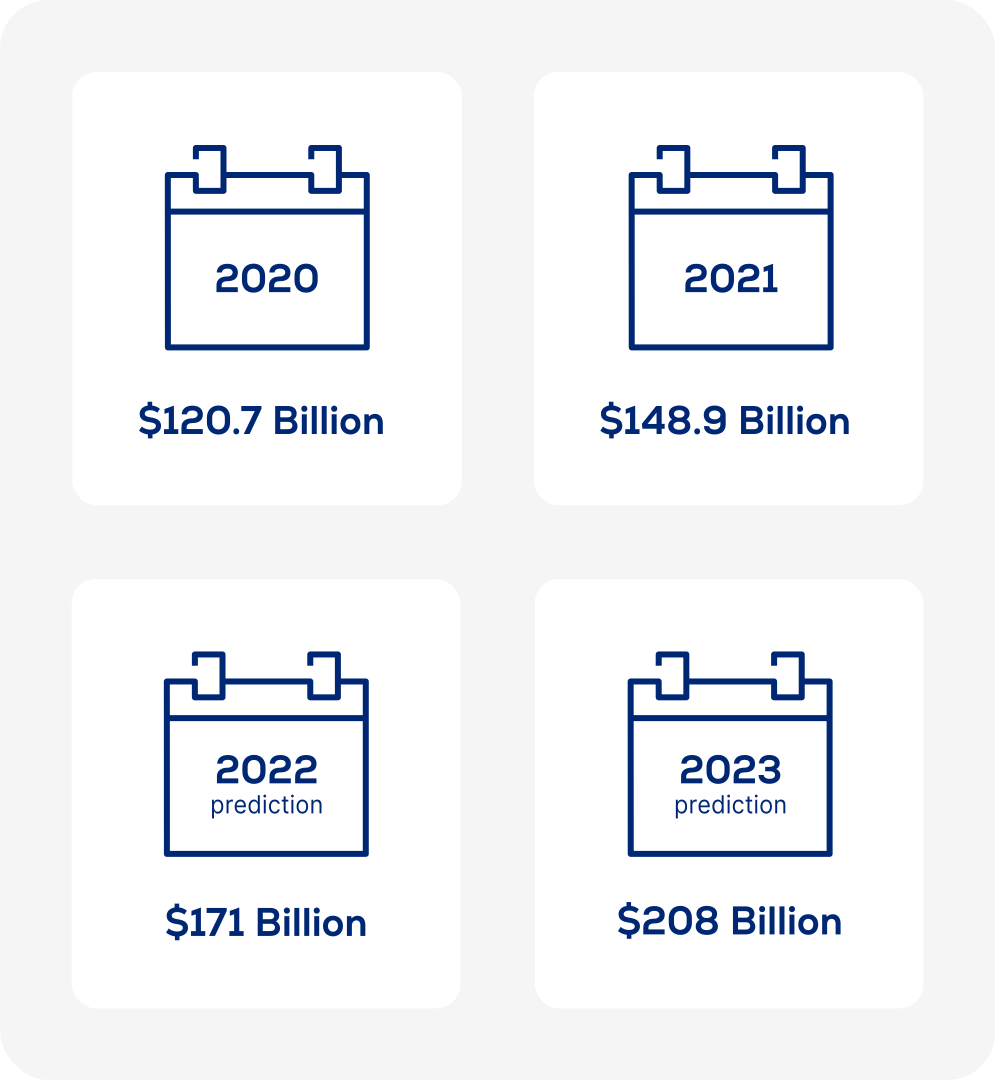
How much is spent on SaaS each year? Let’s look at the leverage that SaaS providers have over your company. The exact revenue estimates vary among experts – but they’re all huge. In 2020, the value was an agreed $120 Billion USD. In 2021, the SaaS market was valued at approximately $145 to $149 Billion. The projection for this year is $171 Billion USD and the prediction for 2030 is between $200 and $208 Billion USD. After that, predictions vary more widely but they all guesstimate close to $370 Billion.
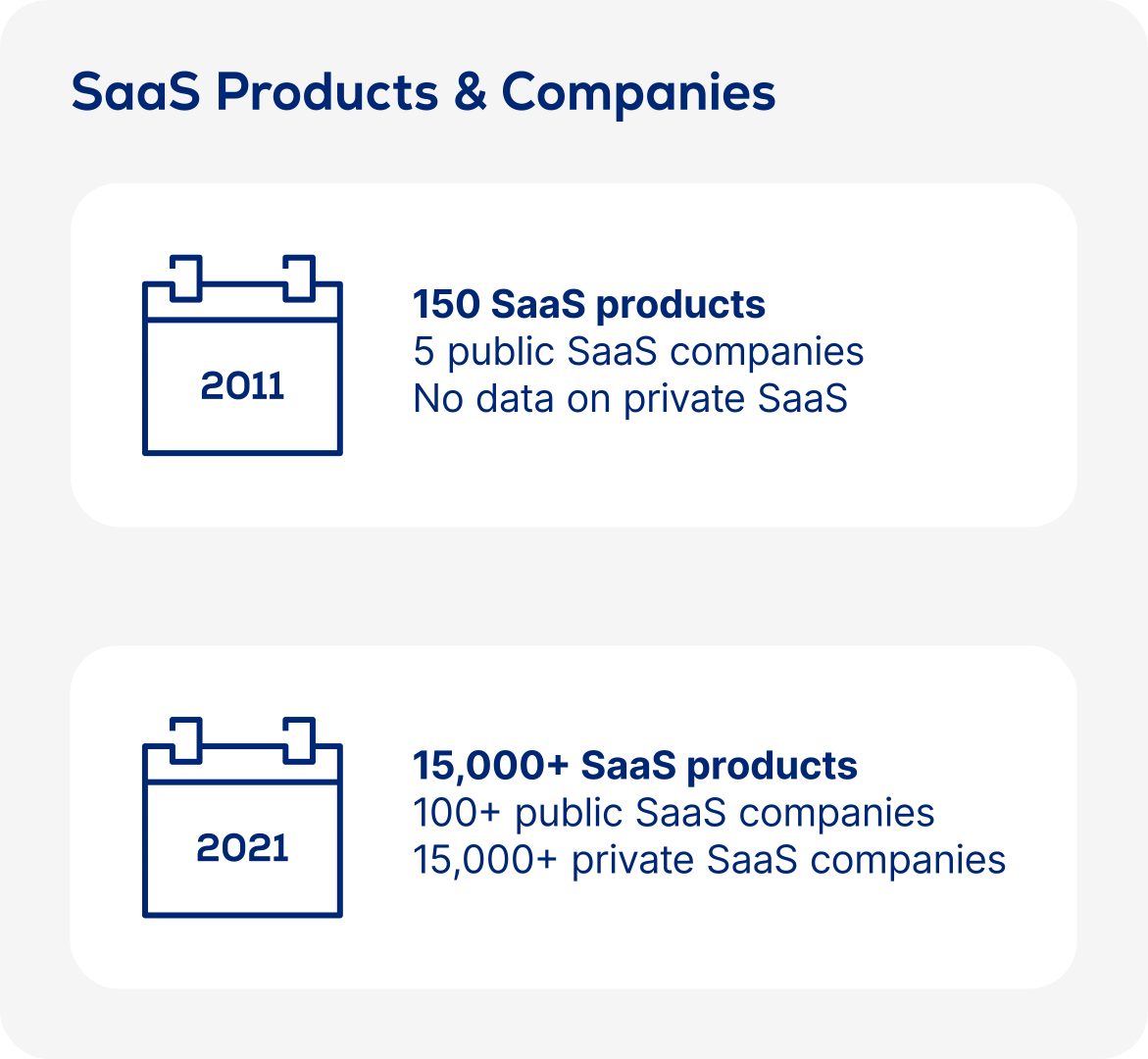
Looking at related information, you will see that 10 years ago, there were only 150 SaaS applications on the consumer market. Last year, there were over 15,000 SaaS apps.
Seen another way, in 2011 there were only five public SaaS companies, and no data tracking private companies. By 2021, there were over 100 public SaaS companies and over 15,000 private SaaS companies. That’s a lot of SaaS asking for your company budget!
SaaS is not simplifying the software world. Just the opposite: now there are more metrics to follow and more user accounts to track them for. Let’s look at how to tackle this together.
1. Categorize the SaaS users
Know who your users are, especially internal vs external roles. Work with HR to maintain a list of who is using what on a daily basis and if they need it.
Your HR department can help you keep updated on employees, aka the users. Are they still with the company? Is the assigned subscription still required for their role? If yes, can the features be downgraded to less access and lower cost?
A common strategy is to categorize internal users separately from external users. Internal users are typically key people who need constant access to the SaaS, while external users are often hired for short-term projects.
Pro Tip: Internal or external?
-
Internal users – There will be key people who always need access to an application. For example, a product manager or product owner will always need a subscription to dev tools like Atlassian Jira. You expect they will use that SaaS for a couple of years so their license can get locked in for a longer contract.
-
External users – You might have contractors or consultants who are temporary users or occasional users. They are helping you on a development project, for instance, and need to use Jira for that time period. You want to closely track them because when their project ends, you can decommission the license and prevent paying for unused licenses.
2. Know Joiners-Movers-Leavers
Stay informed about “J-M-L,” a licensing concept that follows HR changes of an employee joining the company, changing roles, or leaving the company.
The Joiner-Mover-Leaver process follows the lifecycle of an employee. It helps to identify opportunities which can be quick business wins in controlling SaaS costs, as well as other IT aspects such as data security and financial compliance.
You should perform the J-M-L check on a regular basis and ensure that user changes are tracked and updated in a central system such as Microsoft Active Directory (AD). It’s important to get cooperation from department managers and the HR team.
Example: Your J-M-L salesperson
Key J-M-L checkpoints
Joiners
Are the user accounts reviewed and updated?
If a job takes weeks or months to onboard, make sure that SaaS services are not assigned to new employees until they actually need it. Periodically evaluate the business requirements that each role has, and what SaaS fits into that profile.
Movers
Are SaaS licenses being automatically reassigned?
If a SaaS subscription is no longer needed due to the role change, is it automatically deactivated? Made available for someone taking over that open role? What is the pace of change in each department? Should IT and HR work together to adjust the user profiles?
Leavers
Do you have guidelines for deactivating SaaS?
If the employee resigns, should the SaaS services be deactivated on their last day of work, or the day they give notice, or sometime in between? If the employee is terminated, should the SaaS services be deactivated before they are told of their employment end?
3. Identify the account holder
Associate real people with login credentials so you can identify users who have multiple subscriptions for a SaaS solution, or are using generic email addresses.
Tracking access does not always give an accurate picture of how software is being used. Because login credentials can be generic or shared, they do not always identify the users they represent.
For instance, a marketing person has an admin account for the employee sharing platform Bambu, but the email address is a general name, marketing@company.com. Or you have multiple test user accounts for a WebEx account – such as testuser1 and testuser2 – and each is assigned to a different admin.
Your IT team should assign an employee name to every email account to identify that it’s being used by a real person, and who that person is. You don’t want to assign a SaaS license to an alias account that exists as a convenient way to send group emails or do sandbox testing. Keep an up-to-date list of all account holders to minimize the risk of duplicate and unnecessary licenses.
Example: Avoid going generic
4. Monitor activity thresholds
Set thresholds that help monitor your user activity and automatically turn off accounts if inactivity is detected. A best practice is, yet again, to work with your HR team.
The more sources of user data you have, the better you can avoid gaps in your information. And a more complete your view of account usage lets you make educated decisions about SaaS usage and ownership.
You can access records that will help you assess account activity. Active Directory (AD) and Single Sign-On (SSO) are a great starting point.
Pro Tip: 3 ways to monitor
-
A monthly review between SaaS users and the AD identifies inactive users within the enterprise.
-
Audit logs from your SSO system will help show which accounts are in use, and which accounts can be disabled, redistributed, or reassigned.
-
You can also use activity from email and chat software, such as reviewing Exchange Online, to see if an account is active.
Is the person using the license? Did they change their position? Is someone on their team taking over certain tasks for them? In collaboration with HR, check your list for users who have left the company or are on long-term leave (such as a sabbatical or parental leave). By comparing these records to your list of account holders, you can ensure that you are not closing the door on important stakeholders.
For instance, how should you set the threshold for inactivity that leads to automatically removed access? Should the date of last use be set to 30 days, 60 days, 90 days, 180 days? The smaller that window, the more controls you will need in your organization, because more users will be affected and potentially unhappy if their access is cut off accidentally.
Example: Engaged employees
Another example: You’re monitoring SAP usage and every month you have 40 to 80 users who weren’t active. The broad stroke would be to deactivate them all. But some of those licenses are for financial people who require constant access even though they might not use a system for three months.
5. Look for unauthorized SaaS
How do you determine what SaaS products your employees are using? There are technical methods to discover “shadow IT” such their behavior such as SSO and browser logs.
“Shadow IT” is a term that refers to people using IT devices, software and services outside the ownership, knowledge, or control of your IT team. Your goal is to make sure employees are using only the services they are authorized for in order to avoid unplanned spend and unmanaged data security.
Since SaaS is always accessed from a browser, you can’t look for installations on a user’s computer or devices. Instead, you need to connect remotely and scan their environment.
Single sign-on (SSO). If your company is running a single sign-on environment, the employee doesn‘t put in their user name and password each time they access the software service. To see a record of their usage, you can connect to your SSO system and access the records to see what logins have been captured.
Browser usage. Every user leaves “digital traces“ online. Access the log record of employee’s browser usage to see their web activity including SaaS web pages they are going to. Browser plugins will track application usage on company devices although they won‘t capture the full SaaS usage if an employee is browsing in incognito mode.
Payments system. Connect to systems such as AP/GL or Expense Reports. If there isn’t a payment record on file with your purchasing department, then you know that unapproved SaaS is in play – rather than in pay (hah).
Example: Detecting Dropbox
Pro Tip: How big is the leak?
Shadow IT is a bigger risk with the consumption-based subscriptions of cloud platforms, where the costs build faster and higher, like an open pipe that’s spraying water. But it’s still an important cost consideration for user-based SaaS subscriptions – perhaps more of the drip, drip, drip of a leaky faucet.
6. Stop duplicates or redundancies
It’s easy to accidentally buy duplicates of a SaaS subscription. Often this happens when employees purchase the same software service independently of each other.
SaaS is relatively cheap and often bought without checking into central IT. An employee might not know that your company pays for an enterpriselevel account, or that another team already has a group license, and in either situation they could simply tap into the available seats.
Buying Acrobat Pro in place of using Acrobat Reader is a common example. The result is that each Acrobat subscription has a higher per-user cost, and those small duplicated costs add up quickly.
Another kind of duplication is actually a redundancy. Different employees – typically part of different departments – are using multiple SaaS services that do the same thing. A common example is using three different IM clients – like Slack, Teams and WhatsApp – or four separate backup providers (at USU, we have seen it all!)
In this case you have to review if there is overlapping in the features offered by each SaaS tool. Then evaluate them against each other based on price, functionality, and license terms.
Example: A helpful duplicate
7. Track from a global level
From a bird’s eye view, you can look for three big (trash) buckets of wasted costs: Inactive users, unknown users, and right-sizing accounts. Creating “rules sets” helps.
“Rule sets” are a fancy word for running a condition of usage on your user records. These are quite powerful for interpreting behavior across large groups of employees or even your entire company. A common rule set would be “look at last time the user logged in, within a 100-day period.”
Here are the 3 big buckets to set up rule sets for:
-
Inactive user accounts
An employee is using the subscription infrequently or not at all. Look for all inactive and idle accounts based on thresholds like time inactive. Configure your workflow to take back and reuse their subscriptions (called “re-harvesting”). -
Unknown user accounts
An employee left the company and no longer needs the subscription. Match your cloud users against an employee list from HR. Identify SaaS accounts that are assigned to terminated or unidentifiable users. Configure your workflow to deactivate those accounts. -
Right sizing user accounts
An employee is not using all the features of their subscription. Compare the actual usage of the app against the usage allowed in the assigned subscription. Look for options to use more cost-efficient subscription types, such as a single app instead of a full bundle of apps. Configure your workflow to reassign a new subscription type.
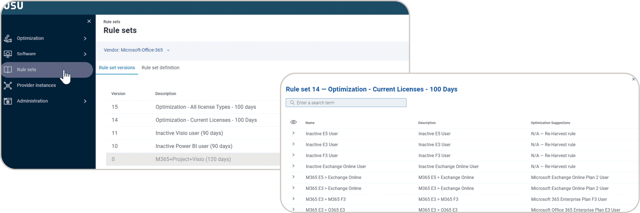
Example: Inactive Visio installations
Pro Tip: Rules are tough. Get a tool.
There are (what seems like) infinite combinations of Microsoft 365 licenses. What is the most optimized licensing for a Technical Project Manager? Suppose they’re using Microsoft 365 E5, Microsoft Project P5, and Microsoft Visio P2? Or they’re using Visio P1 instead of P2, or not using Visio at all? Microsoft recently included Visio (web version) in M365 Enterprise and Office 365 Enterprise plans, but Project is not included.
And the list goes on. It’s a lot to calculate and assign manually. To handle rule sets efficiently, you’ll want to set up and configure workflows with automated processes. That’s where a professional solution for managing SaaS is so essential – our USU Software Asset Management is specifically designed for this SaaS optimization.
8. Scope at a local level
Think globally, act locally. Another way to analyze user accounts – called “user scoping” – is to set up analysis rules that are specific to individual attributes like geography and job role.
Every person is unique. So is every employee, and that includes attributes such as geographic location, their department in your company, their specific job role – or their role in a department in a geographical region.
That’s why it’s important to think about individual settings when you analyze – or “scope” – user accounts. In “07: Track From a Global Level”, we explained the three broad buckets of tracking user behavior. Now let’s zoom into a more granular level.
For instance, SaaS contracts might be arranged differently at a regional level. An user in Paris might need different rule sets than a user in Chicago because of localized data practices due to GDPR.
Or your organization might give a Standard license for Salesforce to all admin assistants. But an Executive Admin to the VP of Sales should get a Professional license so they have greater access to assist in creating opportunities and company entries
Example: USU country user scope
9. Talk to your SaaS users
Data isn’t always enough to know if a user needs access. When in doubt, talk internally to a department head or go directly to the employee.
When in doubt, don’t be afraid to ask! People want to be involved in processes that affect them. An employee will be frustrated to suddenly discover that their software isn’t running, and their manager will be concerned about downtime or project disruption.
By taking directly with the users or department heads, you’ll quickly know what SaaS services they need. The added benefit is by connecting on a personal level with people in your company, you have an opportunity to help each person understand the costs, risks, and how to reduce them.
Make sure that your licensing processes – especially deactivation! – are tied into workflows and email notifications. This is a simple and automated way to get people actively informed and involved in the licensing decisions.
If you see patterns in the SaaS that employees are trying to use, you’ll understand what products they feel are (or aren’t) helping productivity. This information applies to SaaS approval processes as well. Perhaps your IT team is slow in approving SaaS requests, or reimbursement policies aren’t in place, or the software services provided don’t support the functionality needed. People take situations in their own hands when they aren‘t getting what they need.
10. Use a monthly checklist
In the corporate world, the most popular SaaS services are Microsoft 365 Suite, Adobe Creative Cloud, and Salesforce. Here is a standard checklist that we advise our customers to perform at the end of each month.
In this list, we bring together many of the topics covered in this eBook, such as cross-checking users for inactivity, looking for duplicate subscriptions, and combining individual licenses into license packages.
-
Extract users
Extract all users from Microsoft 365, Creative Cloud or Salesforce using Graph API, .csv file, or your preferred method. -
Check domains
Check for unprofessional domains that do not belong to the customer. -
Crosscheck AD
Crosscheck all users in each platform with their status in Active Directory / LDAP. -
Covert to All Apps (Adobe)
Convert all users with more than three Creative Cloud products from standalone licenses to an All Apps subscription. -
Double allocation
Ensure none of these users have a double allocation for a given product (such as M365 E1 / E3 / E5; Project P1 / P2, Power BI Pro / E5, Creative Cloud All Apps / Standalone) -
Remove standalones
Once users are converted the cheapest plan, make sure that all standalone products are no longer allocated. -
Deactivate users
Deactivate all users that are inactive or disabled in Active Directory. -
Cheapest option
All users who have multiple licenses should be converted to the cheapest plan. For instance, combine individual standalone licenses into a global group license. -
Duplicate bundles
Check all multiple allocations, per user, to make sure that bundles aren’t duplicated. -
Keep user extract
Keep the extract list of active users for a view of the budget allocation for monthly fees of each SaaS product assigned and used.
Conclusion
The best way to avoid SaaS “junk in your trunk” is a full overview of your subscriptions and services. A professional solution is crucial to automate this analysis and make reliable business decisions.
These reviews can be performed manually, of course, but it’s faster and less error-prone to run in an automated, connected professional solution, like our USU Software Asset Management.
For instance, it’s easy to remember to reclaim hardware devices when an employee leaves your company. SaaS can be more invisible, so it’s helpful to have an instant re-harvesting record as part of your J-M-L process. Also, automatic notifications between systems help IT and HR to communicate about employee changes.
A professional solution helps you analyze the personalization of SaaS usage. Does an employee need features that aren’t met by an assigned product? How do you evaluate whether to replace unofficial individual purchases with a more cost-effective group subscription?
As the SaaS market grows, subscription software takes a bigger chunk of your budget. Software vendors will push you to the SaaS license models they make more money from. Let’s make sure you don’t lose money!


Get in touch with an expert
Do you have questions about our offering? A quick call can be way more helpful than a long email chain. Talk to one of our experts to explore our products and see them in action.


Brian Riley
Sales Development
IT Service Management
Send us a message
No matter if you like to partner with USU or just have a few questions.


